 How to view your equity through the co-op app
Actions
As a Co-op member, you can securely view your equity and account status at your convenience through our app by following the steps below.
1. Download the “Co-op: Food, Fuel, Home” app by scanning the QR code with your smart phone. Open the camera app like you’re taking a photo. Point the camera at the QR code until it’s in focus. Tap the banner that appears.

If your camera app is not showing a banner while scanning the QR code, you can go to the App Store for iPhone, or Play Store for Android and search ‘Co-op’.
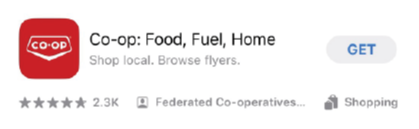
Look for the Co-op logo for the Co-op: Food, Fuel, Home application. Select “GET” for iPhone or “Install” for Android to download.
2. Open the Co-op app on your smartphone. You’ll be prompted to choose between “Enable Location Services” and “Search Locations Manually”. Choose the option that best suits your personal preferences.
3. You will then be prompted to choose an association. Select “Otter Co-op” from the list. You will be asked if you have an Otter Co-op Member Number, select “Yes”. Input your Otter Co-op member number and select the “Continue” button.
4. On the lower toolbar, select “Membership”.

On this page you should see an Otter Co-op tile with your membership number listed on it. It may be labeled as “Unverified”. To verify your account, Select “View” on the bottom right of the tile.
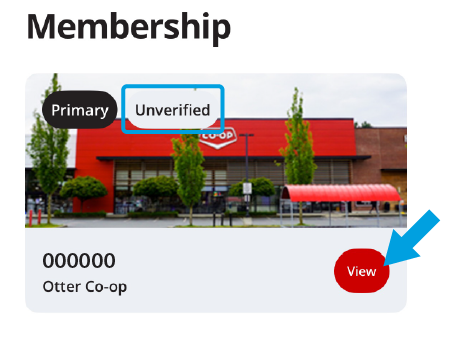
5. At the top of this page, there is a digital version of your membership card. Below that should say “Create a Co-op Account” with two options;
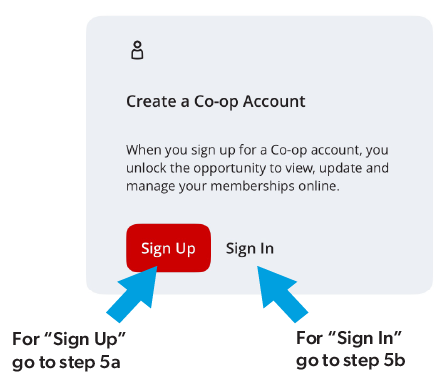
5a. SIGN UP: If this is your first time creating a Co-op account, select “Sign Up”. A new pop up will appear, enter the email you want associated with your Co-op account and select “Continue”. Below “My Account”, select “Sign Up” once more.

On this screen, enter your email and select “Send verification code”. Open your email’s inbox and you should find a new email from Co-op. Open this email to find your six digit verification code. Enter this verification code in the app and select “Verify code”.
You will be prompted to create a password for your account. Enter your chosen password into the “New Password” text field. Enter the same password into the “Confirm Password” text field. Select the checkbox for “I agree to the Terms of Service”, then select “Continue”.

Enter your details and select “Continue”. Please move on to step 6.
5b. SIGN IN: If you have an existing co-op account, enter the e-mail and select "continue". Enter the password associated with your account and select "sign in".
6. On the lower toolbar, select "Membership".
On the Otter Co-op tile, select “View” on the bottom right of the tile.
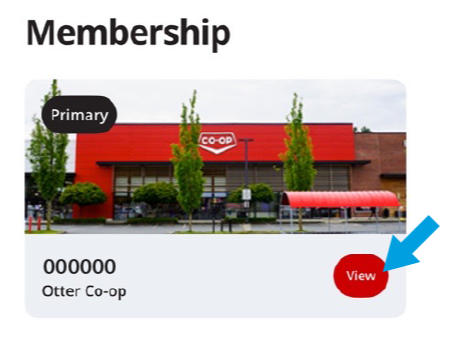
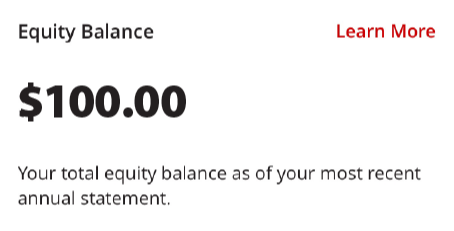
You can now view the equity tied to your Otter Co-op membership under "Equity Balance".
If you have further questions or need assistance with the app, select "Account" on the lower toolbar. Scroll down to find the "Support" section. Select the "support" option. Continue as prompted.
